Back Up OPNsense to a Private GitHub Repo
| Problem | My firewall’s whole configuration lived in one place: the firewall |
| Approach | Record every config change as a Git commit and push it to a private repo |
| Outcome | A versioned history of every change, restorable at any time |
OPNsense stores its entire configuration in a single file, config.xml. If
the disk dies or an update goes wrong, that file is the difference between a
10-minute restore and rebuilding from memory.
I want:
- every change recorded automatically, without remembering to click anything
- a history of what changed and when (like
git logfor my firewall) - the backup stored off the device
Why a private repo
Section titled “Why a private repo”I keep two repos:
| Repo | Visibility | Contains |
|---|---|---|
opnsense-backup |
Private | Raw config.xml, pushed by OPNsense |
| This site | Public | Sanitized guides like this one |
What you need
Section titled “What you need”- OPNsense with web GUI access (I’m on 26.1)
- A GitHub account with two-factor authentication enabled
- A terminal with
ssh-keygen(Linux, macOS, or Windows/WSL)
Step 1: Create the private repo
Section titled “Step 1: Create the private repo”On GitHub, create a new repository:
- Name:
opnsense-backup - Visibility: Private
- Initialize: leave everything unchecked (empty repo)
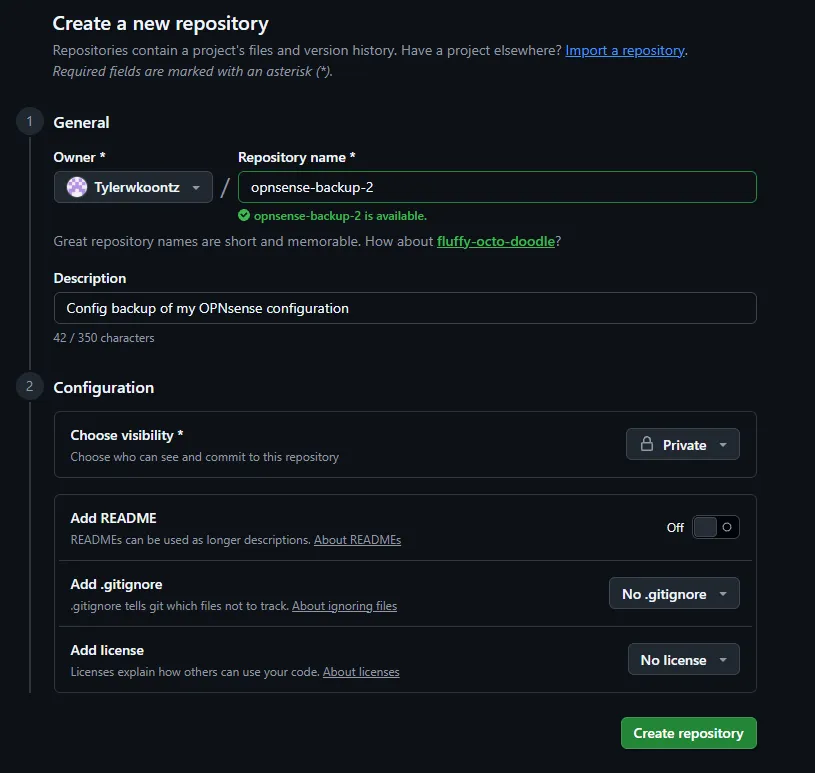
(The screenshot shows a second test name; mine is opnsense-backup.)
Step 2: Install the plugin
Section titled “Step 2: Install the plugin”System → Firmware → Plugins, search for git-backup, and install
os-git-backup.

Step 3: Create a deploy key
Section titled “Step 3: Create a deploy key”A deploy key is an SSH key that grants access to one repository only. If it ever leaks, the attacker gets this backup repo and nothing else in your GitHub account. It’s least privilege, applied to a backup job.
Generate a key pair:
ssh-keygen -t ed25519 -C "opnsense-backup" -f ~/opnsense-backup-key -N ""This creates two files:
| File | Goes to |
|---|---|
opnsense-backup-key.pub |
GitHub (public key) |
opnsense-backup-key |
OPNsense (private key) |
Add the public key to the repo:
- Repo → Settings → Deploy keys → Add deploy key
- Title:
OPNsense - Key: the output of
cat ~/opnsense-backup-key.pub - Check Allow write access (OPNsense needs to push)
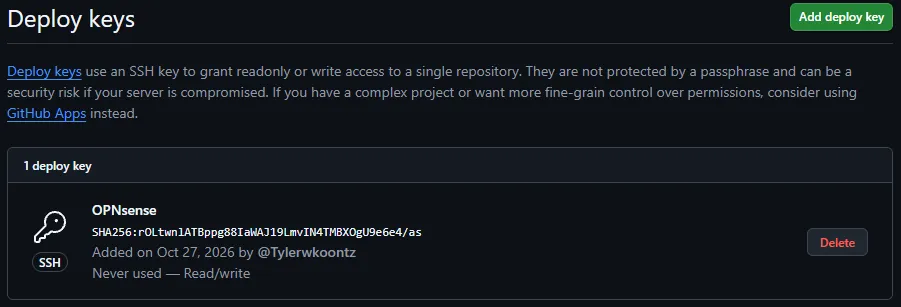
The fingerprint shown is safe to publish. It identifies the public key and can’t be used to log in. Never screenshot the private key.
Step 4: Connect OPNsense to the repo
Section titled “Step 4: Connect OPNsense to the repo”System → Configuration → Backups, in the Git section:
| Field | Value |
|---|---|
| Enable | ✅ |
| URL | ssh://github.com/<your-username>/opnsense-backup.git |
| Branch | main |
| Force Push | ☐ Leave unchecked |
| SSH private key | Contents of ~/opnsense-backup-key (the file without .pub) |
| User Name | git |
| Password | (empty) |
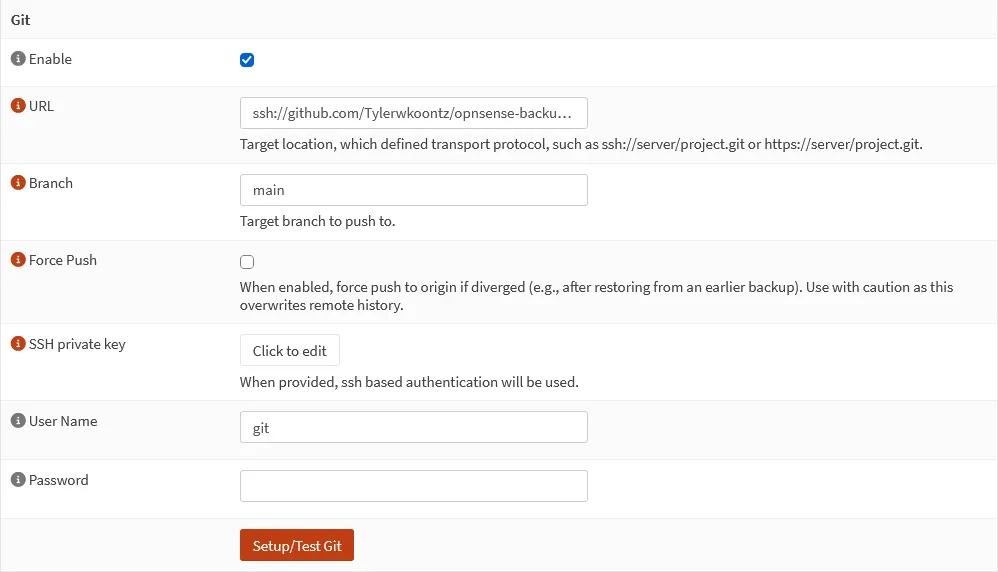
Force Push overwrites the repo’s history when it disagrees with the firewall’s. Leave it off. Its only use is after restoring an older config, and history is the whole point of this setup.
Step 5: Run the first backup
Section titled “Step 5: Run the first backup”Click Setup/Test Git. On success, OPNsense pushes the config and lists what’s in the repo:

Refresh the repo on GitHub and config.xml is there, with its first commit.
How the commits work
Section titled “How the commits work”From here on, every config change becomes its own commit, named after the page that made it. To test it, I edited a firewall rule’s description, then pushed:
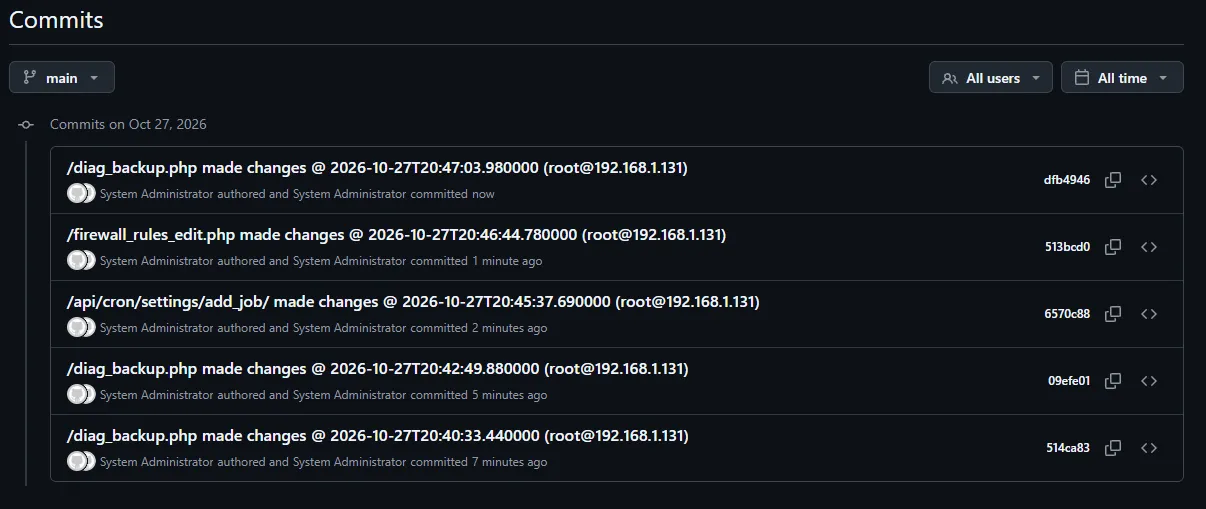
/firewall_rules_edit.php is my test change. /api/cron/settings/add_job/
is the schedule from Step 6. Clicking a commit on GitHub shows exactly which
lines of config.xml changed: a git log and git diff for the firewall.
Recording and pushing are separate, though. OPNsense commits each change locally right away, but it doesn’t push on every change. I tested it: after another rule edit, nothing reached GitHub in 5 minutes. Pushes happen when you click Setup/Test Git or save the Git settings, and on the schedule in Step 6.
Troubleshooting “authentication failure”
Section titled “Troubleshooting “authentication failure””My first attempts failed with “authentication failure”. That GUI message is generic, so I narrowed it down in two steps:
-
Test the key outside OPNsense. From the machine where you generated it:
Terminal window ssh -i ~/opnsense-backup-key -o IdentitiesOnly=yes -T git@github.com“Hi user/opnsense-backup! You’ve successfully authenticated” means the key and deploy key are fine, and the problem is in OPNsense’s settings.
-
Read the real error in System → Log Files → General (search
git). Mine showedgit@git@github.com: Permission denied, which pointed straight at the doubled user name (gotcha 2 above). With User Name empty, it showedroot@git@github.cominstead.

Step 6: Push on a schedule
Section titled “Step 6: Push on a schedule”System → Settings → Cron → + adds a job that runs OPNsense’s Remote backup command, which pushes to every enabled backup target, including Git:
| Field | Value |
|---|---|
| Minutes | 0 |
| Hours | 3 (daily at 03:00 UTC) |
| Command | Remote backup |
| Description | Push config to Git |
Save, then click Apply.
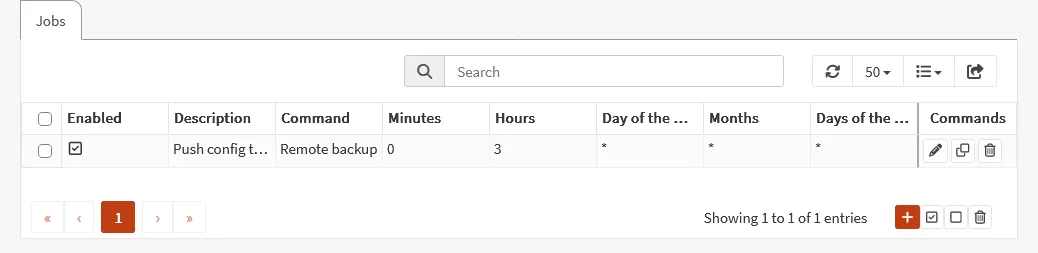
Even if I forget to push after a change, it reaches GitHub within a day. After a bigger change, I click Setup/Test Git to push it right away.
Step 7: Clean up the key
Section titled “Step 7: Clean up the key”OPNsense now has the private key, so remove the copies from your machine:
rm ~/opnsense-backup-key ~/opnsense-backup-key.pubDeploy keys are disposable. If you ever lose it, generate a new pair, replace the key on GitHub, and paste the new private key into OPNsense.
The trade-off
Section titled “The trade-off”The plugin pushes config.xml unencrypted. A private repo keeps it away
from the public, but it’s stored on GitHub’s servers, and your GitHub
account becomes the key to your firewall config.
What I do about it:
- Two-factor authentication on GitHub (required, not optional)
- A deploy key scoped to one repo, instead of a personal access token
- A separate encrypted manual backup, kept offline, for disaster recovery
Step 8: Test a restore
Section titled “Step 8: Test a restore”A backup you’ve never restored is only a hope, so I tested one. I
downloaded config.xml from the repo and restored it through System →
Configuration → Backups → Restore:
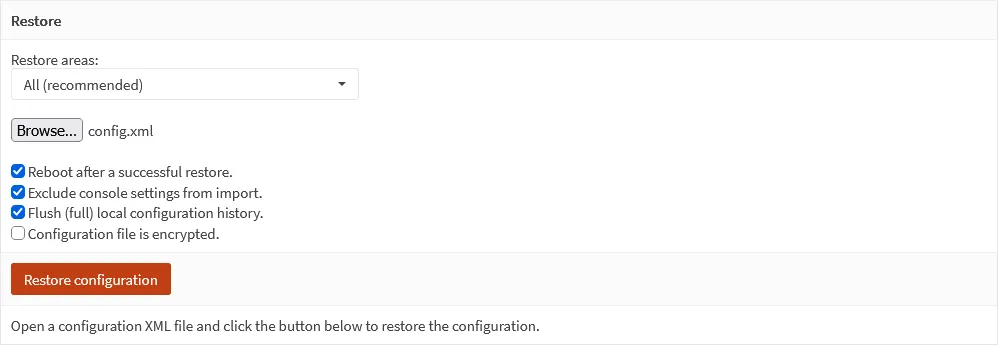
| Option | Setting | Why |
|---|---|---|
| Restore areas | All | Full restore, as if rebuilding the firewall |
| Reboot after a successful restore | ✅ | Applies every setting cleanly |
| Exclude console settings | ✅ | Keeps the local console settings of the box you’re restoring onto |
| Flush (full) local configuration history | ✅ | Clears the firewall’s change history, including its local Git repo. See the warning below. |
| Configuration file is encrypted | ☐ | The Git copy is plain XML (see the trade-off above) |

The firewall rebooted with the restored config and came back working. I restored onto the same firewall, which proves the file and the process work. Restoring onto a fresh OPNsense VM would be the stronger test, and it’s on my list.
Lessons
Section titled “Lessons”The error message pointed the wrong way
Section titled “The error message pointed the wrong way”“Authentication failure” sounds like a bad key, so my first instinct was to regenerate it. The key was fine. Testing it directly against GitHub proved that in one command, and the log showed the real problem: OPNsense was building the SSH address from two fields, and I’d put the user in both.
The habit worth keeping: when a GUI gives a vague error, test each piece on its own (the key, then the connection, then the settings) and find the log that shows the actual command. It’s the same approach as troubleshooting a circuit hop by hop instead of swapping hardware.
The restore test found what the backup test couldn’t
Section titled “The restore test found what the backup test couldn’t”After Step 5, everything looked done: “Backup successful,” a commit on GitHub. Testing a restore broke it. The restore wiped the firewall’s local Git history, and backups silently stopped until I force pushed.
If I’d skipped the restore test, I’d have found out during a real emergency, with backups weeks out of date. Testing the recovery path, not only the backup, is the part that counts.